
Create a Form
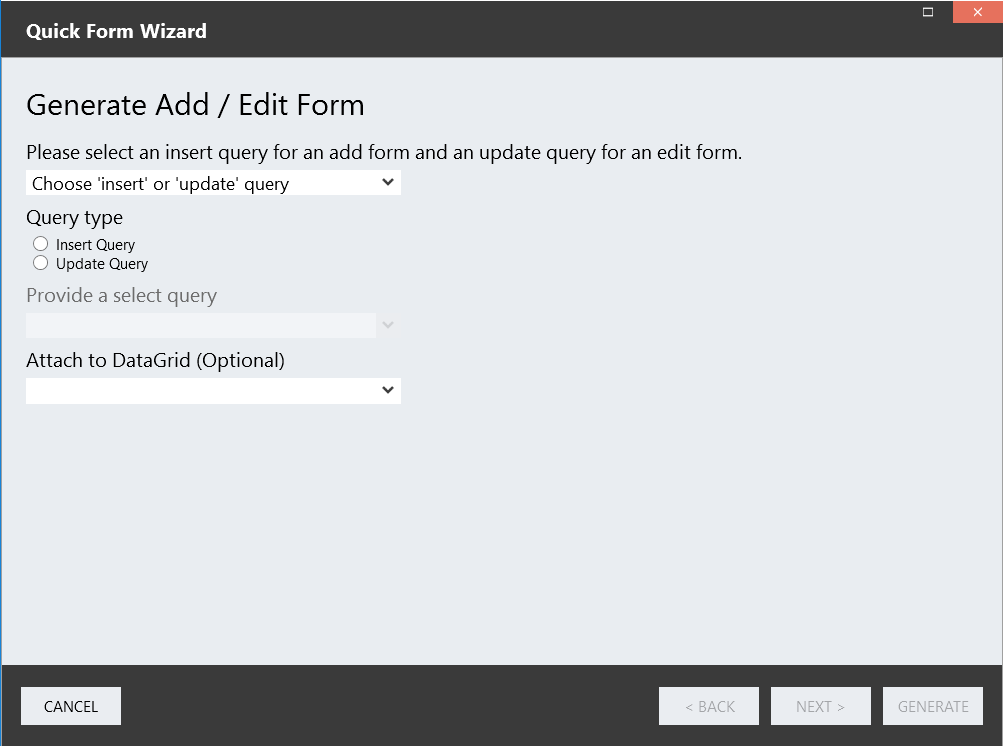
The Create Form wizard is used to quickly create forms for adding or editing data.
Create a Form {% endembed %}
Properties
Section titled “Properties”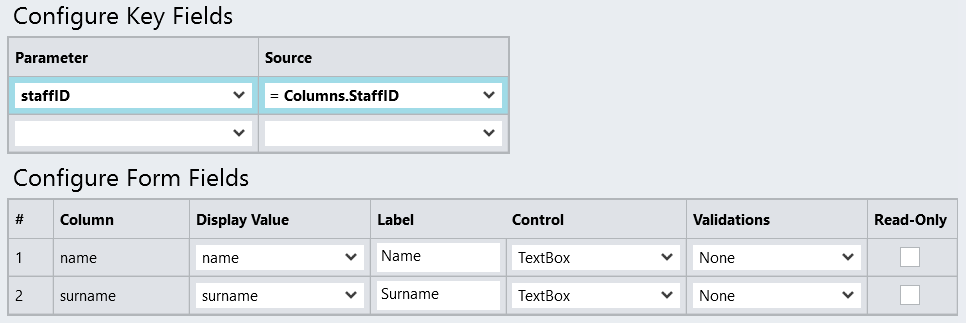
-
Query
The insert or update query to use with the form.
-
Query type
Insert or Update.
-
Select Query
If applicable, the select query to populate your update form.
-
Datagrid
If applicable, indicate a datagrid to display your data.
-
Label
The label for the form field.
-
Control
The type of control (field), e.g. textbox.
-
Validations
The validations that must be performed on the data, e.g. required field, number validation or email validation.
-
Read-Only
To make the field read-only (non-editable).
-
Label placement
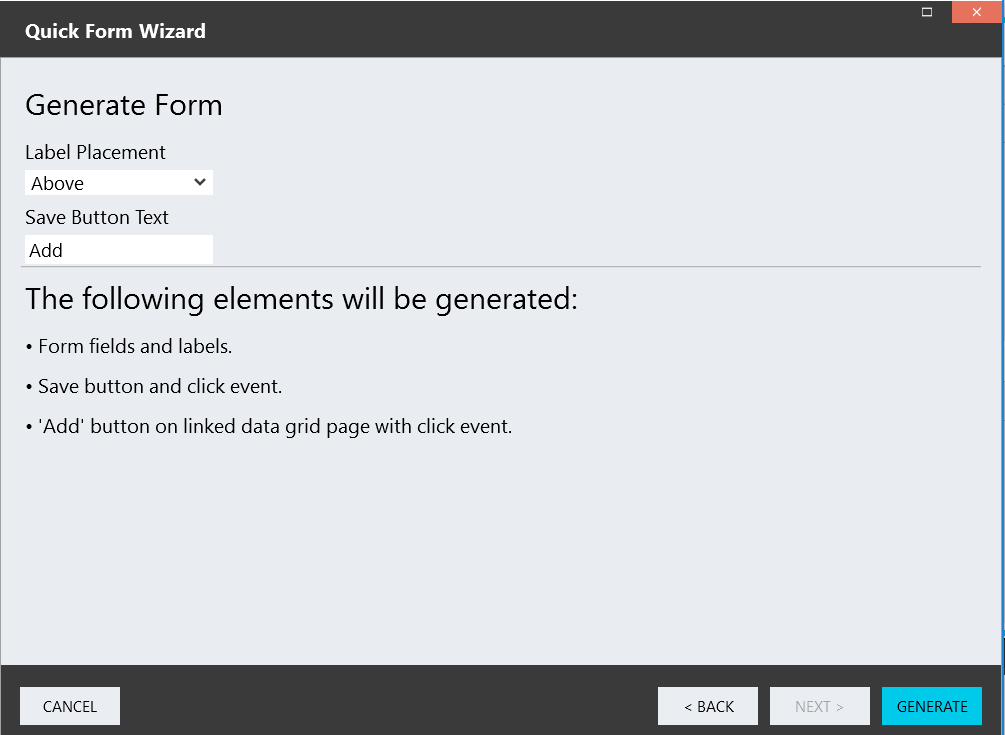
Indicate where the label must appear in relation to the field.
-
Save button text
The text on the form button.
How to create an update form
Section titled “How to create an update form”Assume that you have a database and that you want to provide your users with a form to update data in the database.
- Add a Database connector to your application.
- Add the following 3 SQL queries to the connector:
- a query to load the DataGrid (let’s name it SelectAll)
- a query to load the edit form with a specific record (name it SelectRecord)
- a query to update the specific record (name it UpdateRecord)
- Add a DataGrid to your page.
- Select your SelectAll query to load your DataGrid columns.
- Click Create Form on the toolbar.
- Select your UpdateRecord query.
- For Query Type, select the Update Query radio button.
- To provide a select query, select your SelectRecord query.
- Attach your DataGrid to the form.
- Select the staffID DataGrid column for the Source property of the staffID key field.
- Click Next, then click Generate.