Validations Cheat Sheet
Validation Expressions Cheat Sheet
Section titled “Validation Expressions Cheat Sheet”This readme describes how to create validations in Stadium 6.12 and upwards.
Overview
Section titled “Overview”The release of Stadium 6.12 brings some changes to how Control validations work in Stadium. Instead of a simple selection from a limited set of predefined options, we can now use expressions to flexibly validate control values and properties as well as the values and properties of related controls.
Full feature set:
- Custom validation definition using Javascript expressions
- Custom error message definition
- Programmatic error state setting
- Programmatic error message definition
When upgrading a pre-6.12 application in the 6.12 Stadium Designer, older validations will automatically be upgraded.
Stadium Version
Section titled “Stadium Version”6.12 and upwards
Required / Not Required
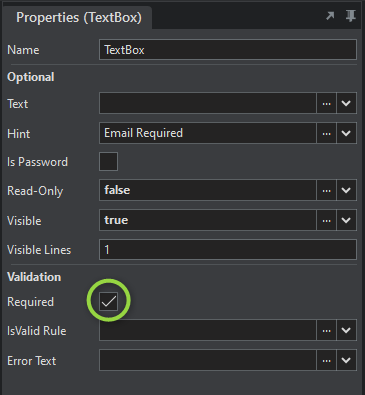
Section titled “Required / Not Required”To mark a Control as required, check the “Required” checkbox and enter a validation message
IsValid
Section titled “IsValid”The “IsValid” property is a boolean flag that defines when Controls are in an error state. This property is “true” by default and is set to “false” when it fails an “IsValid Rule”. It can also be set programmatically in scripts.
IsValid Rule
Section titled “IsValid Rule”The “IsValid Rule” property accepts a Javascript expression. If the Control value passes the expression the IsValid property is true and the Control has passed the validation. If the Control value does not pass the expression the IsValid property is false, the Control is placed in an error state and the error message is displayed under the Control.
Copy-and-Paste Expressions
Section titled “Copy-and-Paste Expressions”A wide range of validations can be performed with the help of regular expressions. However, regular expressions are not always easy to write. Below are regular expressions for all current Stadium validations.
To use these examples, adjust the Control name (“TextBox” in this example) and copy & paste any of these expressions into the “IsValid” rule in the properties panel
IsEmail
Section titled “IsEmail”/^(([^<>()[\]\\.,;:\s@"]+(\.[^<>()[\]\\.,;:\s@"]+)*)|.(".+"))@((\[[0-9]{1,3}\.[0-9]{1,3}\.[0-9]{1,3}\.[0-9]{1,3}\])|(([a-zA-Z\-0-9]+\.)+[a-zA-Z]{2,}))$/.test(TextBox.Text)IsAmount
Section titled “IsAmount”/^\d+(\.\d{1,2})?$/.test(TextBox.Text)IsNumber
Section titled “IsNumber”/^\d+$/.test(TextBox.Text)Number.isInteger(TextBox.Text)With http / https
/https?:\/\/[-a-z0-9@:%._\+~#=]{1,256}\.[a-z0-9()]{1,6}\b([-a-z0-9()@:%_\+.~#?&//=]*)/i.test(TextBox.Text)Text length is 8 or more
Section titled “Text length is 8 or more”TextBox.Text.length > 7Password validation
Section titled “Password validation”Rules: 8 – 16 characters, at least one number, at least one special character
/^(?=.*[\d])(?=.*[!@#$%^&*])[\w!@#$%^&*]{8,16}$/.test(TextBox.Text)Letters only
Section titled “Letters only”/^[a-zA-Z]*$/.test(TextBox.Text)Use AI to generate a RegEx
Section titled “Use AI to generate a RegEx”If you need a specific RegEx, but are not sure how to write it, I came across a function in the Google Gemini AI tool that will generate a RegEx from a text prompt.
Google AI Studio RegEx Text Prompt
Here is an example prompt for a complex RegEx:
Give me a JavaScript regex that checks a string for the following:The string must have 8-24 characters.The string must contain upper and lowercase characters.The string must contain at least one number.The string must have at least one of the following special characters: ~!@#$%^&*()_+=-:;<,>.?The result:
/^(?=.*[a-z])(?=.*[A-Z])(?=.*\d)(?=.*[~!@#$%^&*()_+=-:;<,>.?]).{8,24}$/Implementing this as a Stadium Validation:
/^(?=.*[a-z])(?=.*[A-Z])(?=.*\d)(?=.*[~!@#$%^&*()_+=-:;<,>.?]).{8,24}$/.test(TextBox.Text)Date Range (DatePicker)
Section titled “Date Range (DatePicker)”Date between Jan 1, 2023 & today
DatePicker.Date >= new Date('01/01/2023') && DatePicker.Date <= new Date()Number Range
Section titled “Number Range”Number between 1 and 12
TextBox.Text > 0 && TextBox.Text < 13Combining criteria
Section titled “Combining criteria”When values from one or from more Controls are required to adhere to multiple criteria (x AND y), the criteria can be combined by adding a double ampersand (&&)
CheckBox.Checked && DatePicker.Date >= new Date('01/01/2023')When values from one or from more Controls are required to adhere to any listed criteria (x OR y), the criteria can be combined by adding a double pipe (||)
new Date(DatePicker.Date).getFullYear() == 2024 || new Date(DatePicker.Date).getFullYear() == 2025Script-Based Validations
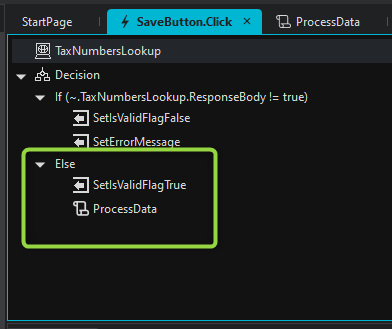
Section titled “Script-Based Validations”Validation errors can be triggered in scripts by setting “IsValid” flags and “Error Text” properties using SetValue actions.
If an “IsValid” flag is set to “false”, the text provided in the “Error Text” property is shown under the field. The “IsValid” flag will remain “false” until it is set to “true” using another SetValue action.
Scripts execute once all controls pass the “IsValid Rules”. Script executions do NOT stop when an “IsValid” flag is set to “false”. Data processing may need to be done conditionally as shown.