
Application users and roles
Applications with Login Mode set to Email & Password can maintain their users in the Users & Roles section. Users can also be administered using the User API
Accessing application Users and Roles
Section titled “Accessing application Users and Roles”Steps:
- Log in to your application with the credentials of an Administrator.
- Click the profile icon
 in the top-right corner of your application.
 - Select Users & Roles.
Overview: Enabling page access
Section titled “Overview: Enabling page access”The Menu control displays only menu items application users can access and automatically filters out the others. Submenus only display if they contain pages users can access.
Steps:
- Adding Roles.
- Provide a role Name.
- Select Pages accessible to users with the Role.
- Save.
- Adding Users.
- Provide an Email and Password.
- Optionally add a Name.
- Check the Administrator checkbox for users that manage Users & Roles.
- Select Roles the user should belong to (the User role is assigned to all users to provide access to the application StartPage).
- Save.
Optionally, use the Pages menu to review and amend Role access to a page.
The User role is created by default. In this section you can maintain the different user roles that you require for your application.
Maintain Roles {% endembed %}
Steps:
-
Click the Roles menu item.
-
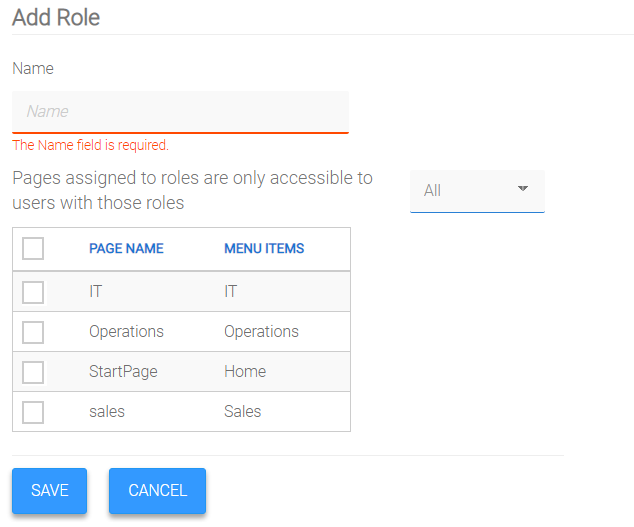
To Add:
- Click Add Role.
- Enter a Name for the Role.
- Select the Pages to which this Role will have access.
- Click Save.
-
Update:
- Click the Edit link associated with the relevant Role.
- Update Name and / or which Pages are assigned to the Role.
- Click Save.
-
Delete:
- Click the Delete link associated with the relevant Role.
- Click Yes to confirm.
Note:
- The default Role is ‘User’.
- All users are automatically and permanently assigned to the ‘User’ role.
- Additional Roles can be assigned to users, and can also be removed (“unassigned”) from users.
Users {% endembed %}
Steps:
- Click the Users menu item.
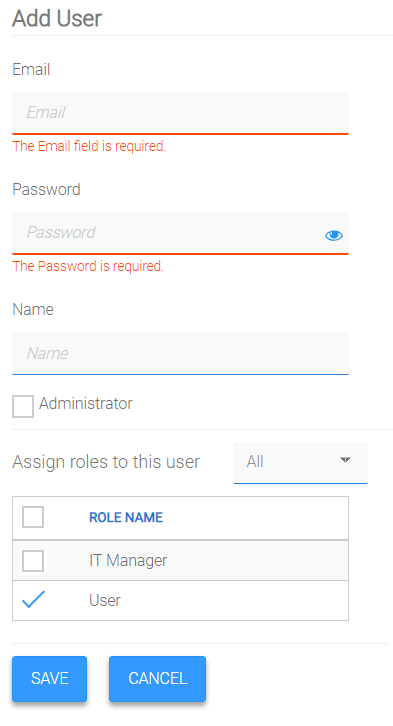
- To Add:
- Click Add User.
- If the Application’s Login Mode is ‘Email & Password’:
- Enter the user’s Name (optional), Email and Password. - Select the Administrator checkbox only if this User is to have Administration rights, i.e. to have access to Application Users and Roles.
- Select the Role(s) to assign to the User.
- Click Save.
- Update:
- Click the Edit link associated with the relevant User.
- Update Email, Password, Name and / or which Role(s) to assign to the User.
- Click Save.
- Delete:
- Click the Delete link associated with the relevant User.
- Click Yes to confirm.
Access to your application’s Pages can be controlled by assigning user roles to each page.
Maintain Role assignments to Pages {% endembed %}
Steps:
- Click the Pages menu item.
- Click the Edit link associated with the relevant Page.
- Select the Role(s) to assign to the Page.
- Click Save.